Introduction
Terminal UI
Inspect routes, agents, tools, exchanges, and live events from the terminal.
Prerequisites
The TUI reads from the SQLite database written by the telemetry() plugin. Enable it in your context before launching the UI:
import { CraftContext, telemetry } from '@routecraft/routecraft'

const ctx = new CraftContext({
  plugins: [telemetry()],
})
See Monitoring for full plugin options.
Launching the TUI
Start the TUI in a separate terminal while your context is running (or after it has stopped; the database persists):
craft tui
To read from a non-default database path:
craft tui --db ./logs/telemetry.db
The TUI polls the database every 2 seconds. Because SQLite runs in WAL mode, reads never block the running context.
Layout
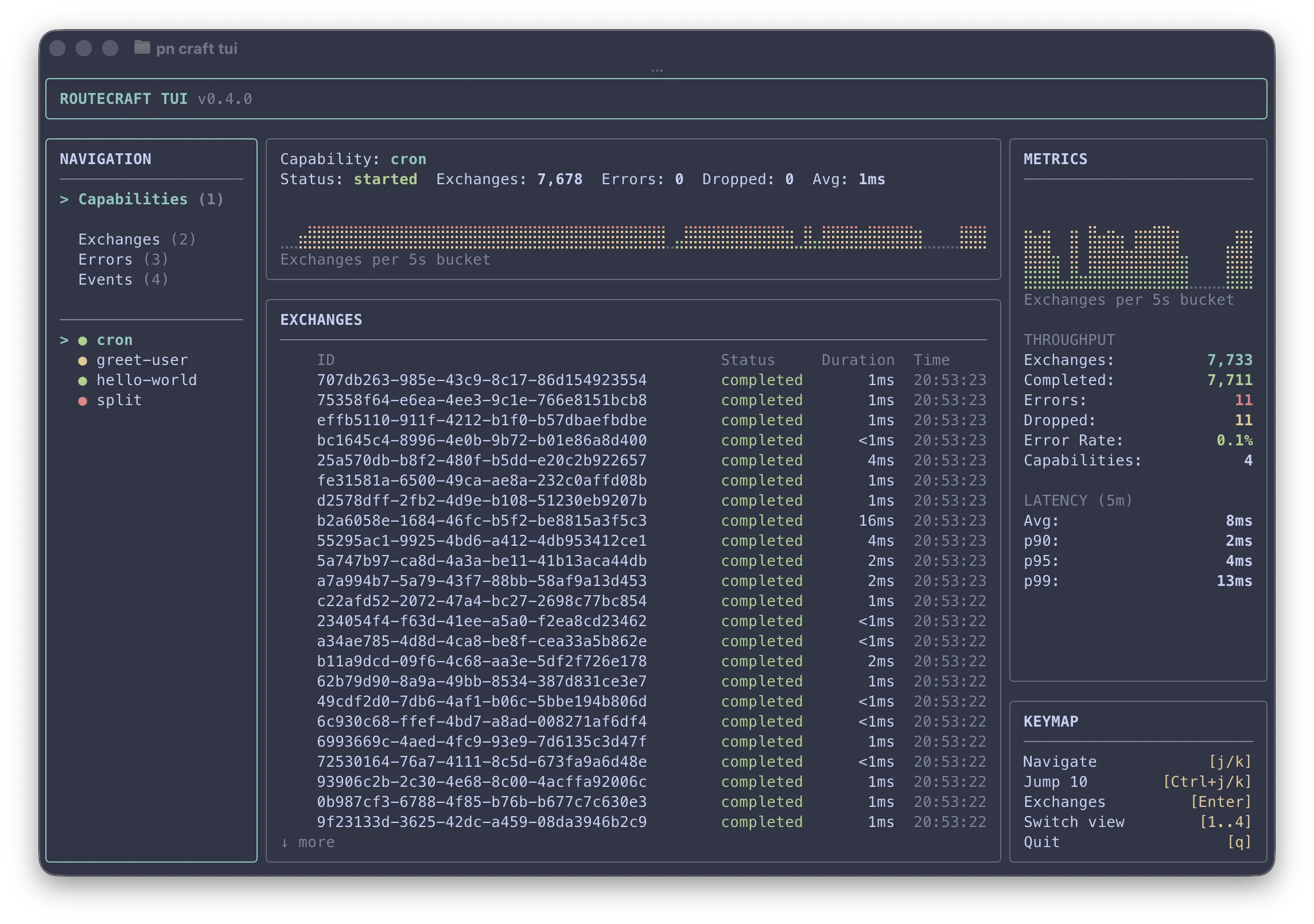
The TUI uses a three-column layout framed by a one-line header and footer:
- Header -- Wordmark, version, and a breadcrumb showing where you are in the drill-down (e.g.
Agents › planner › run 789003e7 › web_search) - Left -- Navigation panel (view switcher + capability / agent / tool list); the Errors item shows a red count when there are failed exchanges
- Center -- Main content (exchange lists, agent runs, tool calls, detail views, or event stream)
- Right -- Metrics panel with throughput stats, latency percentiles (p90/p95/p99), and a live traffic graph
- Footer -- Contextual keyboard hints for the focused view
Navigation is a stack: Enter drills into the selected item and Esc goes back one level, consistently across every view.
Detail views are live: an open exchange re-reads its related events and an open agent run re-reads its tool-call timeline on every poll, so you can watch a long-running agent invoke tools and receive results in order without leaving the view. New rows append below your cursor; press f to pin the cursor to the newest row instead. Opening an exchange or run that is still in flight enables follow automatically.
Views
Capabilities (1)
The default view. The left panel lists all routes (capabilities) seen in the database. Select a route to see its summary in the center panel with recent exchanges.
Press Enter to drill into a route's exchange list in the center panel. Press Esc to return focus to the route list.
Agents (2)
The left panel lists agents seen in the database: agents registered via agentPlugin (shown even before they run) and inline agents discovered when they dispatch (keyed by their route). The status dot is red on errors, green once the agent has run, and yellow for registered-but-not-yet-run.
Press Enter to browse the agent's runs. Every run is one exchange (one dispatch = one execution = one exchange), listed by its exchange id with per-run status, resolved model, total token usage, duration and start time. Press Enter on a run to open its detail: the model, input/output token usage, finish reason, and the ordered tool-call timeline. Press Enter on a tool call to inspect its input and output (captured only when captureSnapshots is enabled), or press x anywhere in the run flow to jump to the underlying exchange itself: its related events, and via e the snapshot of its headers and body (the run's output).
Tools (3)
The left panel lists tools: fns registered via agentPlugin and any tools observed being called. Press Enter to browse a tool's invocation history across all agents and exchanges; each call shows the route, the dispatching agent, its status and the exchange it ran in. Press Enter on a call to inspect its input/output, or x to jump to that exchange's detail.
Exchanges (4)
A chronological list of all exchanges across all routes, ordered most recent first.
Press Enter on any exchange to see its detail view with related events grouped by parent/child flow.
Errors (5)
Same layout as Exchanges but filtered to show only failed exchanges. Useful for quickly spotting and investigating failures.
Events (6)
A chronological tail of all framework events with human-readable summaries: context lifecycle, route lifecycle, exchange events, and step events. Useful for debugging unexpected behaviour.
Keyboard shortcuts
Navigation
Views and drill-down
Related
Monitoring
Logging, events, and the telemetry plugin.
CLI reference
All craft commands and options.